


How to Properly Associate Areas, Robot Groups, and Robots in M4 Scenarios
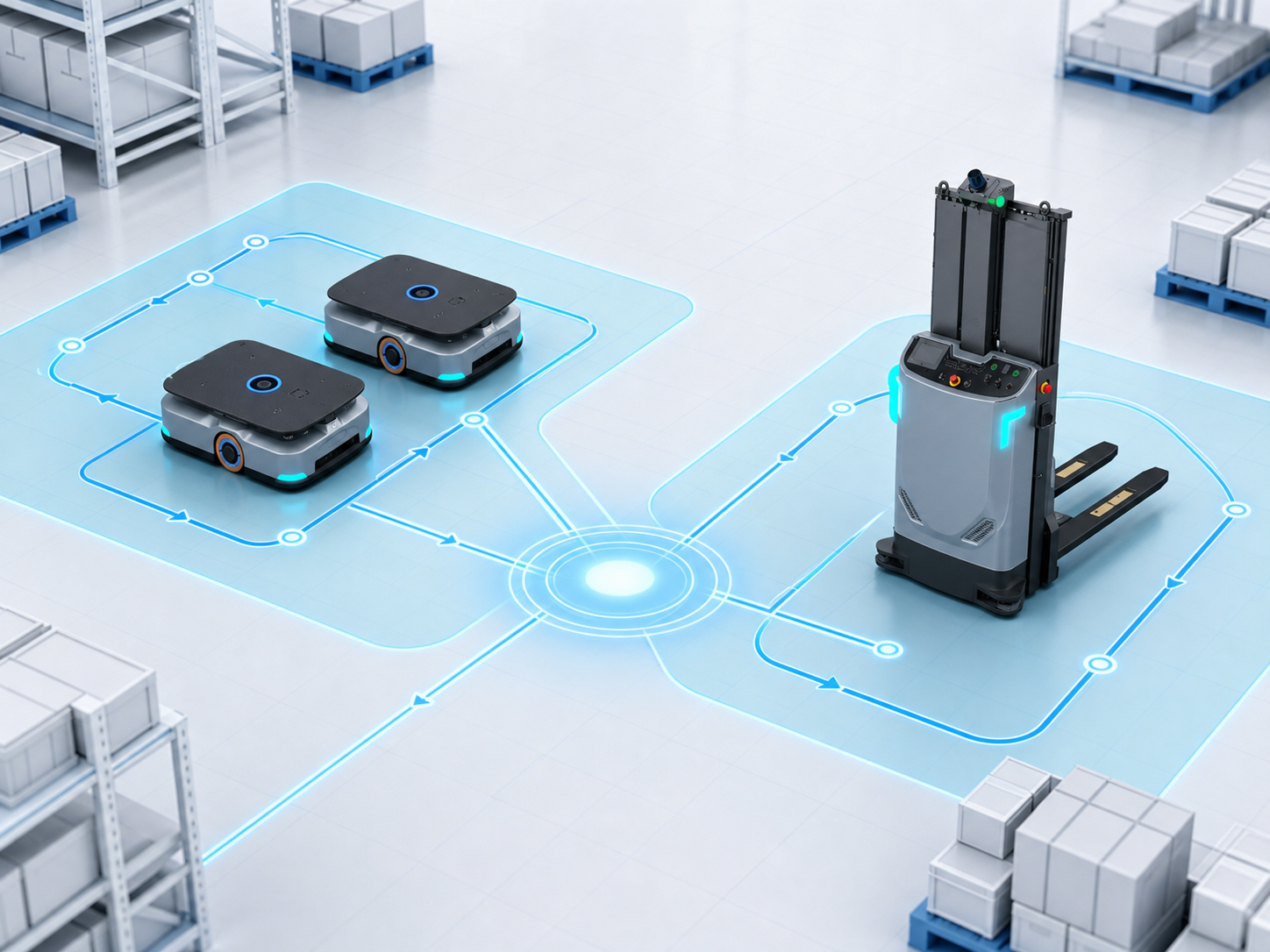
The hierarchy in M4 can be summarized as: Project → M4 Dispatching System → Scenario → Area. An M4 system can manage one or more scenarios, and each scenario can contain one or more areas. Scenarios also encompass Robot Groups and Robots: every Robot must belong to a Robot Group, and a Robot Group must have a map configured under a specific area for the Robots within that group to enter and operate in that area.
Robots can operate across different areas within the same scenario—such as taking an elevator from the first floor to the second floor—but they cannot operate across different scenarios. These relationships help M4 address three fundamental questions: where the task is executed, which Robots can execute it, and which map the Robots should use.
An Area Represents the Specific Space Where Robots Work
An area typically corresponds to a floor, a workshop, or a relatively independent operating space. Each scenario requires at least one area and can contain multiple areas.
For example, a three-story workshop can be set up with three areas: 1F, 2F, and 3F. Once the Robot Group has maps configured under all three areas and the elevator integration is set up, the Robots within the group can execute cross-floor tasks.
A Robot Group Stores Common Configurations for Similar Robots
A Robot Group is used to manage the same type of Robots. Each Robot can only belong to one Robot Group, and Robots within the same group must share the same chassis model, geometric model, and map.
The following configurations are typically managed at the Robot Group level:
-
Chassis dimensions and collision models;
-
Safety distances and motion velocities;
-
Whether the payload can rotate;
-
Whether the payload extends beyond the Robot chassis;
-
Chassis-specific parameters for forklifts, jack-up vehicles, etc.;
-
Simulation collision models, simulation battery capacity, and simulation speed;
-
Stations, paths, and map attributes used by the group.
Therefore, jack-up vehicles, forklifts, and bin-carrying robots should generally be created as separate groups. Based on the Robot Group configurations, M4 determines which routes the Robots can take, whether they can pass through narrow aisles, and whether they are suitable for executing the current task.
A Robot Is the Actual Device That Receives and Executes Tasks
When creating a Robot, you need to fill in information such as its name, its assigned Robot Group, the manufacturer, maximum payload capacity, and connection method. For SEER Robots, the Robot name in M4 must match the name configured on the Robot itself.
Whether a Robot can accept orders also depends on its current status:
-
Enabled: M4 will manage and connect to this Robot; it can be disabled during temporary maintenance.
-
Online: The Robot has established a connection with M4.
-
Available for Orders: The Robot can participate in task allocation and execution.
-
Controlled: M4 has gained control over the Robot and can issue commands.
-
Robots that are unavailable for orders will not receive new tasks. However, M4 will still read their positions to prevent other Robots from colliding with them.
Areas and Robot Groups Establish Relationships Through Maps
To determine whether a Robot Group can operate within a specific area, simply check if the Robot Group has a map configured under that area:
For example, if a scenario has 2 areas and 2 Robot Groups, and both groups of Robots need to operate in both areas, 4 group maps must be configured. If the forklift group only has a map for the first floor, the forklifts cannot execute tasks on the second floor.
A single area can contain maps for multiple Robot Groups. M4 will aggregate and display these maps together while retaining the distinct differences of each group. For instance, the exact same station might allow a small cart to dock but prohibit a forklift from doing so.
When multiple maps belong to the same area, their coordinate origins and orientations must be aligned. Otherwise, the same station may appear in different positions across the maps of different Robot Groups.
M4 Determines Task Assignment Based on Robots and Robot Groups
When creating a transport order, you can select Robots in three ways:
-
Specify a Robot: The task is assigned directly to this specific Robot.
-
Specify a Robot Group: M4 selects the most suitable Robot capable of executing the task from within the group.
-
Specify Neither: M4 searches for the nearest Robot that is available for orders based on critical locations.
The Robot Group defines both the candidate Robots and the areas/maps those Robots are permitted to use. If the specified Robot Group does not have a map in the target area, the task cannot be assigned to that group.
Clear Configurations Ensure Correct Dispatching and Route Planning by M4
Areas, Robot Groups, and Robots together establish a complete execution chain: the area specifies where the Robots work, the Robot Group defines which type of Robots can work, and the Robot handles the actual execution. Maps connect the areas and Robot Groups.
Only when these configurations are correct can M4 determine which Robot to dispatch a task to, which areas the Robot can enter, and which map to use for route planning.
